MFA access using Pragma Fortress ClientSuite
- How to: Configure Cisco device for MFA with ISE/TACACS+
- How to: Configure Cisco device for MFA with Microsoft NPS Radius
- How to: Configure Pragma SSH Server for MFA
How to use Fortress SSH ClientSuite FortressCL as the MFA client
-
Run FortressCL
-
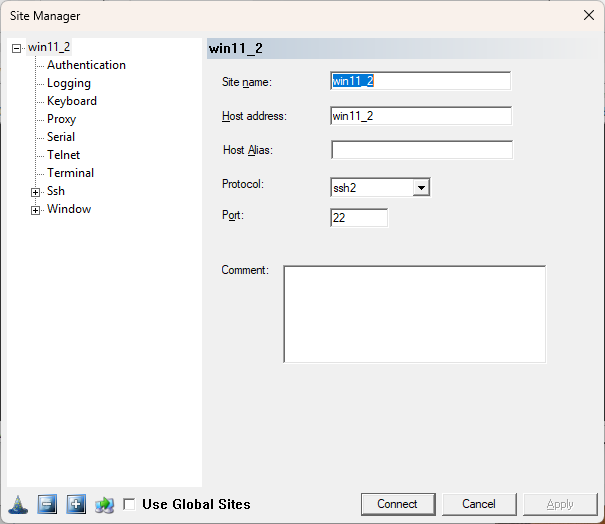
Use plus sign to create a site name to connect and provide its IP address or DNS hostname. Choose Protocol ssh2 and Port (22 typical)
-
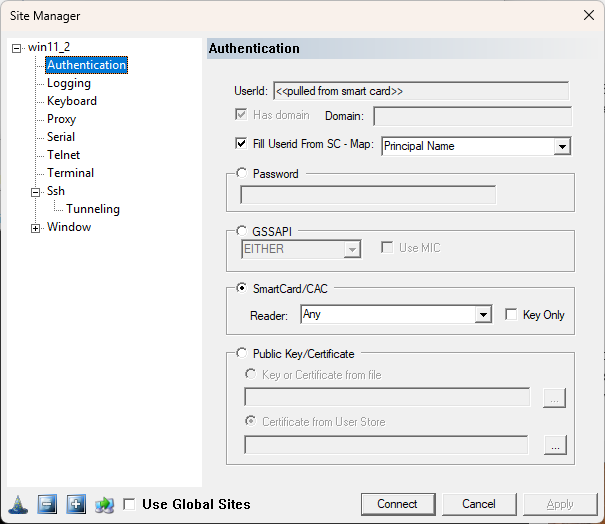
Select "Authentication" tab to provide your MFA, Choose SmartCard/CAC, Reader: Any, Fill UserId from SC - Map: Principal Name. Choose Apply to save it.
-
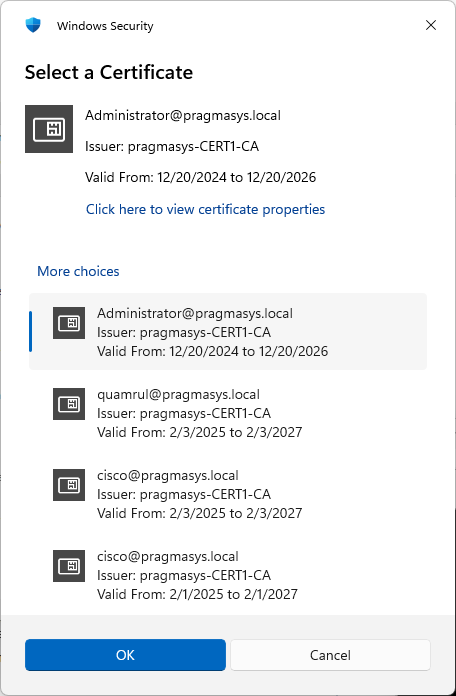
Select "Connect" button and you will be provided a certificate to choose if multiple certificates are in the smartcard/Yubikey. Choose a certificate and then hit OK. Or if it is just one certificate that was there, hit OK.
-
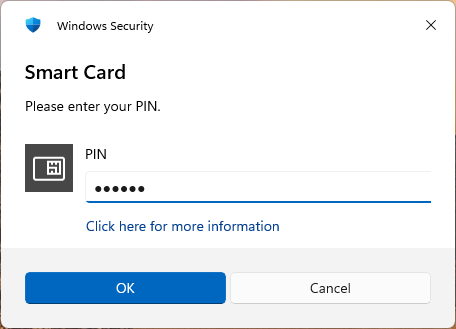
You will be prompted for the PIN. Enter the PIN and hit OK
-
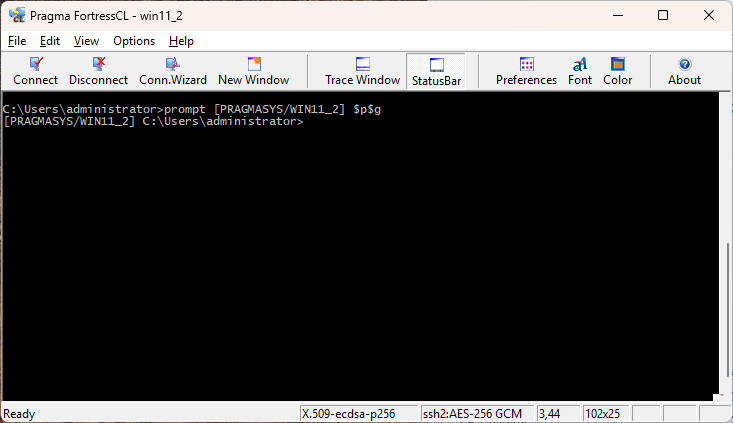
You will now get the secure access session to the remote host
-
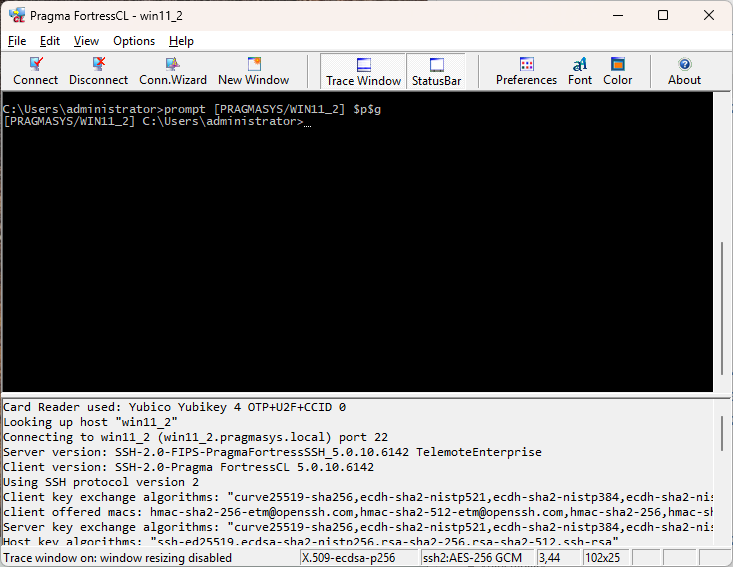
You can select "Trace Window" in the session Tray bar to trace or get more information of the established secure session
-
Disconnect or Close the window to exit your session. All remote connection information will be saved for future sessions to the host.
To connect using Pragma ssh.exe or sftp.exe command line clients bundled with our ClientSuite
-
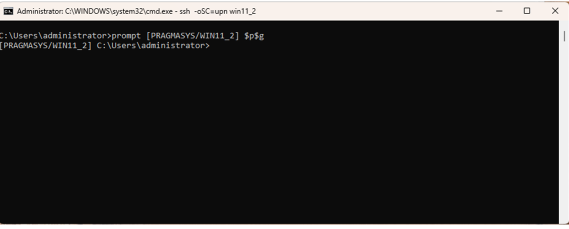
You need to use "-oSC=upn" or "-oSC=cn" switch in our cmd line clients based on whether Univ Principal Name or Common Name of the user is mapped to the smartcard/Yubikey when certificate was issued. "-oSC=upn" is shown in below examples as upn is more widely used.
-
ssh -oSC=upn win11_2 OR sftp -oSC=upn win11_2
-
you will be prompted for the PIN. Enter it. You will get a session like below. Type exit to exit it.